Settings
Here's what every setting in CC Gate does.
Open Settings by clicking the CC Gate icon in your menu bar, then clicking the gear icon. Settings are split into tabs along the top.
General tab
General
Startup, default folder, editor choice, and refresh speed.
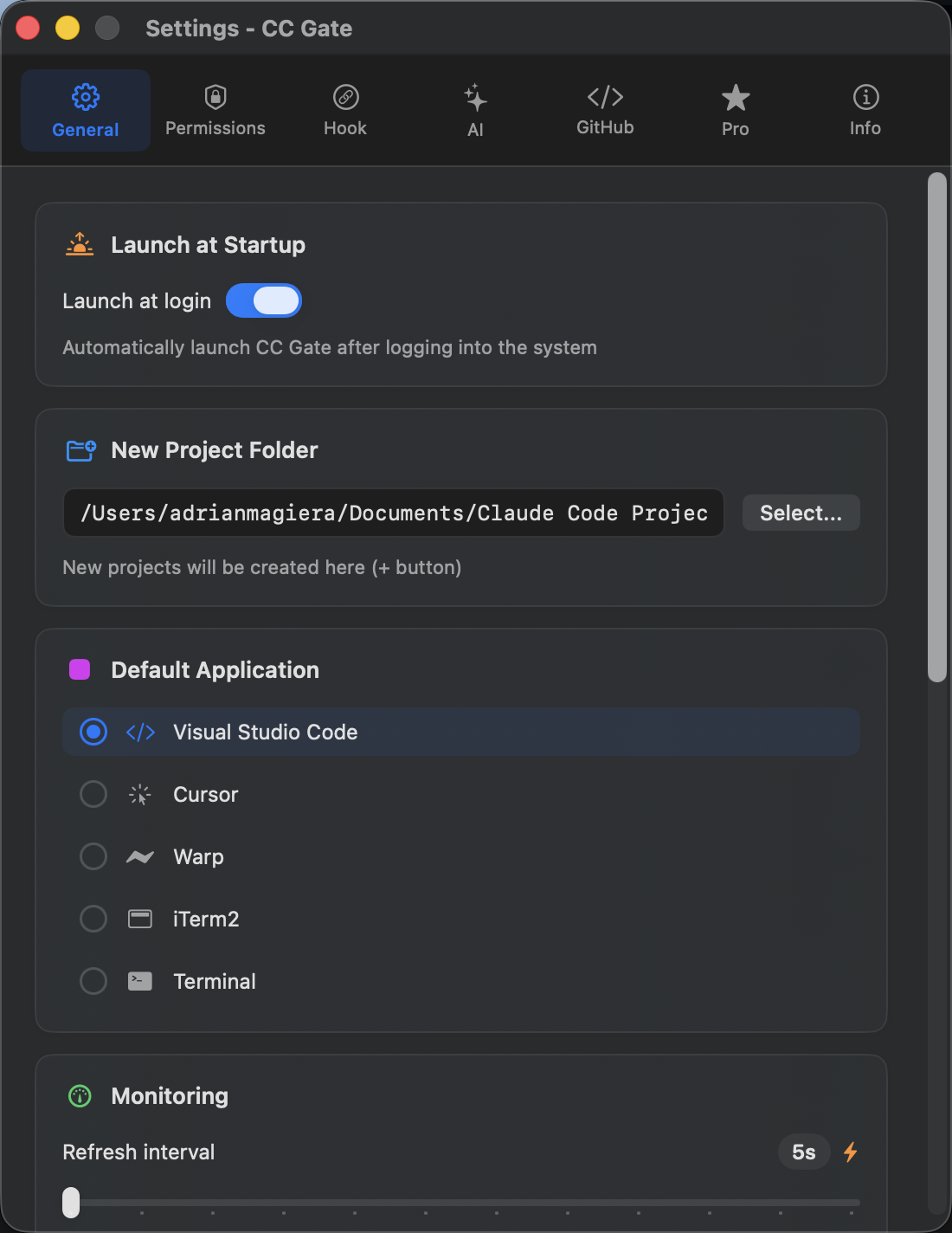
Launch at Login
CC Gate starts automatically when you turn on your Mac. Because it lives in the menu bar with no Dock icon, it stays out of the way.
Default: Off
New Project Folder
Where CC Gate puts new projects when you clone or create one. Click Browse to choose a different folder. You can always change the location per project.
Default: Documents
Default Application
Which editor or terminal opens when you click a project. Choose from VS Code, Cursor, Warp, iTerm2, or Terminal. CC Gate only shows options that are actually installed on your Mac.
Default: VS Code
Refresh Interval
How often CC Gate checks for updates — new projects, status changes, active Claude sessions. Lower = more responsive. Higher = saves battery. Use the slider to set it anywhere from 5 to 60 seconds.
Default: 15 seconds
Battery tip: At 15 seconds (the default), CC Gate barely uses any power. If you're on a laptop unplugged, try 30 or 60 seconds. At 5 seconds, it checks more often and uses noticeably more CPU.
Permissions tab
Permissions
One macOS permission that CC Gate may need.
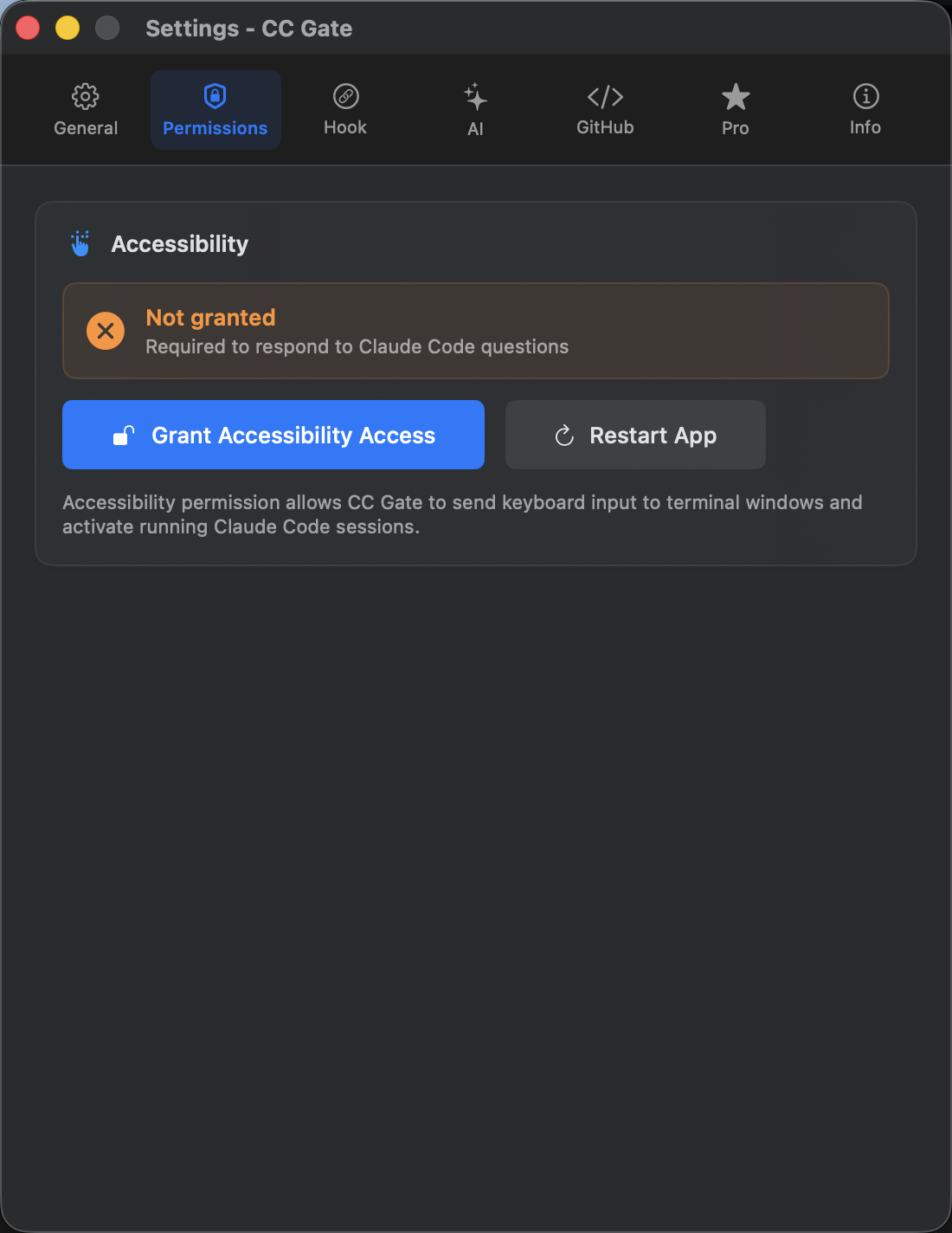
Accessibility Access
This lets CC Gate type answers into your terminal on your behalf. You only need it if you plan to answer Claude's questions manually using CC Gate's interface. If you always use auto-accept, you can skip this. Grant it in System Settings when the button turns red.
Grant button
Opens the Accessibility section of macOS System Settings. Find CC Gate in the list and flip the toggle. You may need to enter your Mac's password.
Restart App
After granting access, click this to restart CC Gate. The permission only takes effect after a restart.
Hook tab
Hook
The connection between CC Gate and Claude Code.
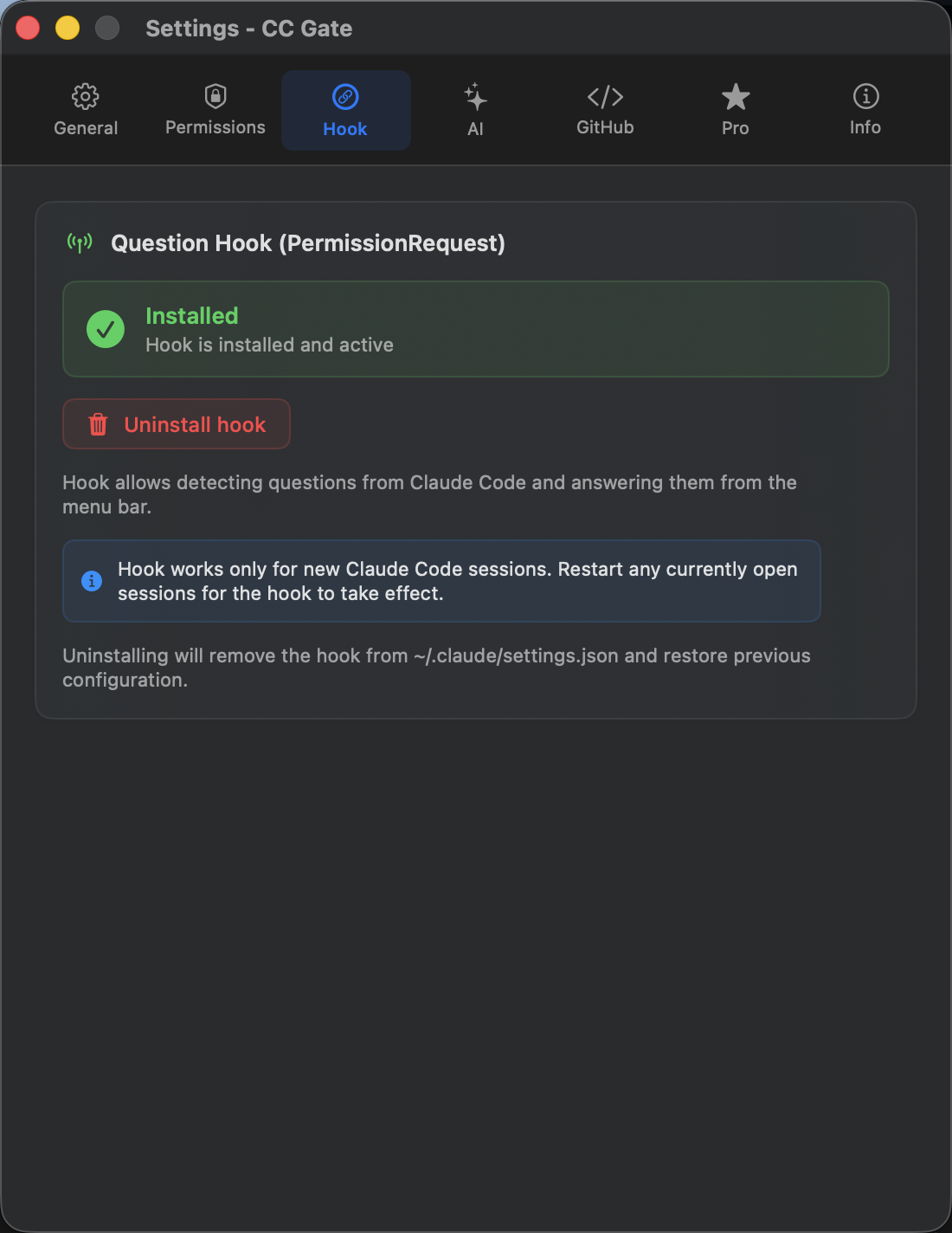
Install hook
This connects CC Gate to Claude Code so it can intercept permission requests and apply your auto-accept settings. You need this for auto-accept to work. Click Install — it takes a second.
Status
Green means everything is working. Yellow means the hook is installed but a newer version is available — CC Gate will update it automatically. Red means the hook isn't installed yet.
Uninstall
Removes the connection between CC Gate and Claude Code. Claude will go back to asking you directly in the terminal for all permission requests.
AI tab
AI
Settings for AI-powered commit message generation.
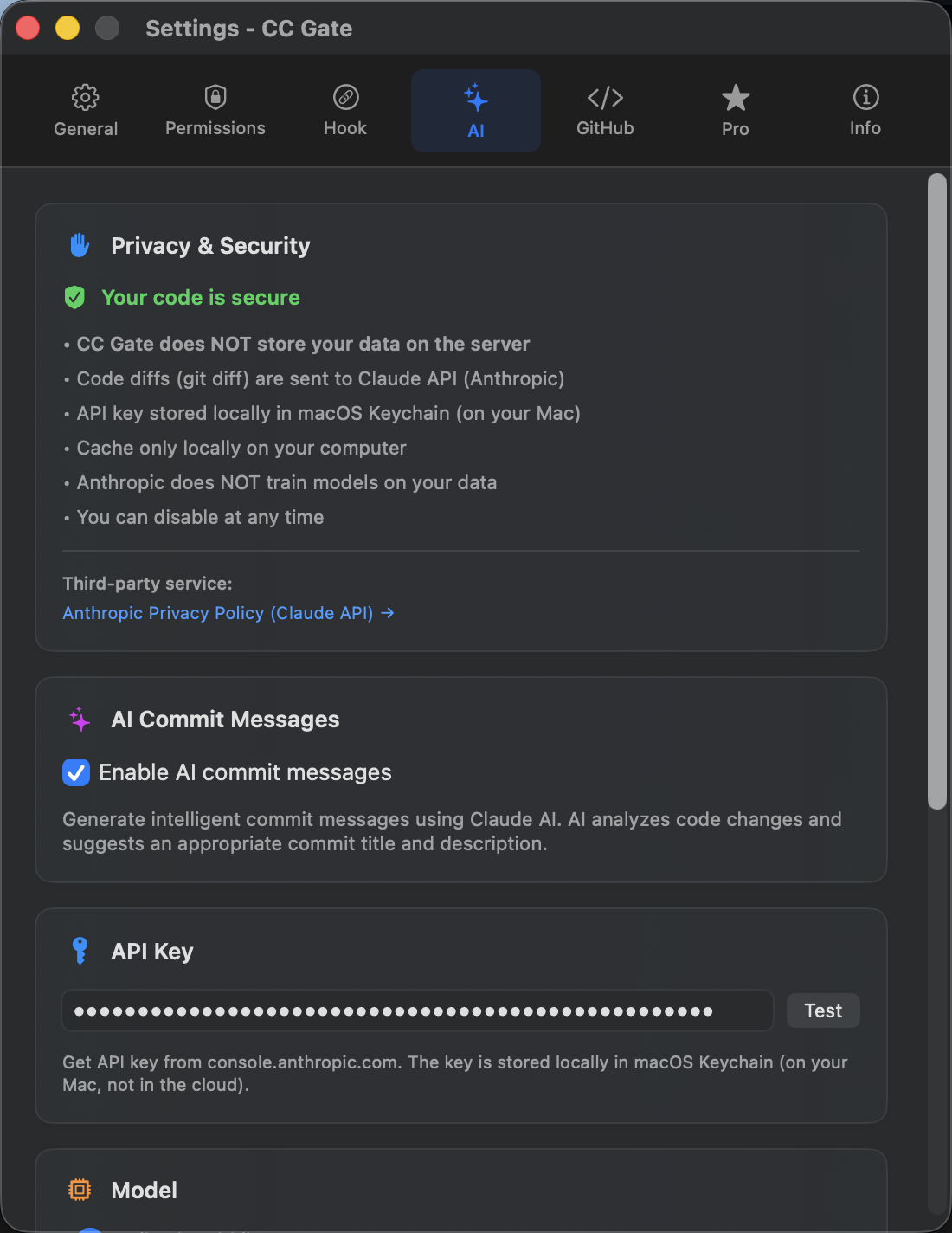
Enable AI commit messages
Turns on the feature that writes your commit messages for you. Requires a Pro plan — see the Pro tab.
Default: Off (Pro required)
API Key
Your key from console.anthropic.com. It's stored securely in your Mac's Keychain — never in a file, never sent anywhere except Anthropic's servers when generating a commit message.
Test
Click this to check whether your API key is valid and has credits. A green checkmark means it's working. A red error means the key needs to be replaced.
Model
Which AI model writes your commit messages. Haiku is faster and cheaper. Sonnet is more thoughtful and produces better results for complex changes. By default, CC Gate uses both — Haiku for large diffs, Sonnet for the final message.
GitHub tab
GitHub
Connect to GitHub for push, fork, and clone.
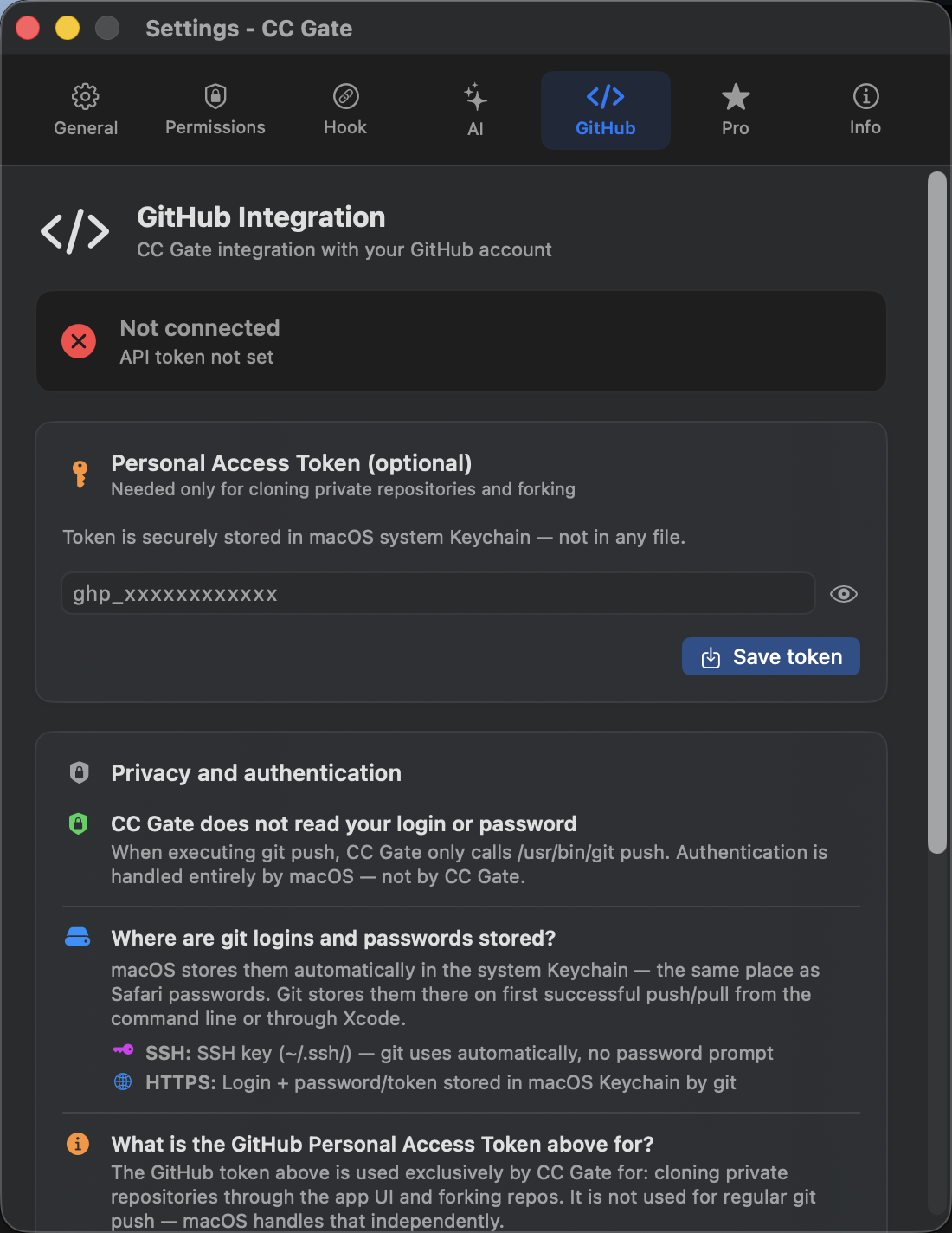
Personal Access Token
A special password for apps — you generate it on GitHub and paste it here. CC Gate uses it to push commits, fork repos, and clone projects. See GitHub Integration for step-by-step instructions.
Save token
Saves your token to your Mac's Keychain. It is never written to a plain text file. The status badge turns green once saved successfully.
Status
Green means CC Gate is connected to GitHub. Gray means no token has been saved yet.
Pro tab
Pro
Your plan status and Pro features.
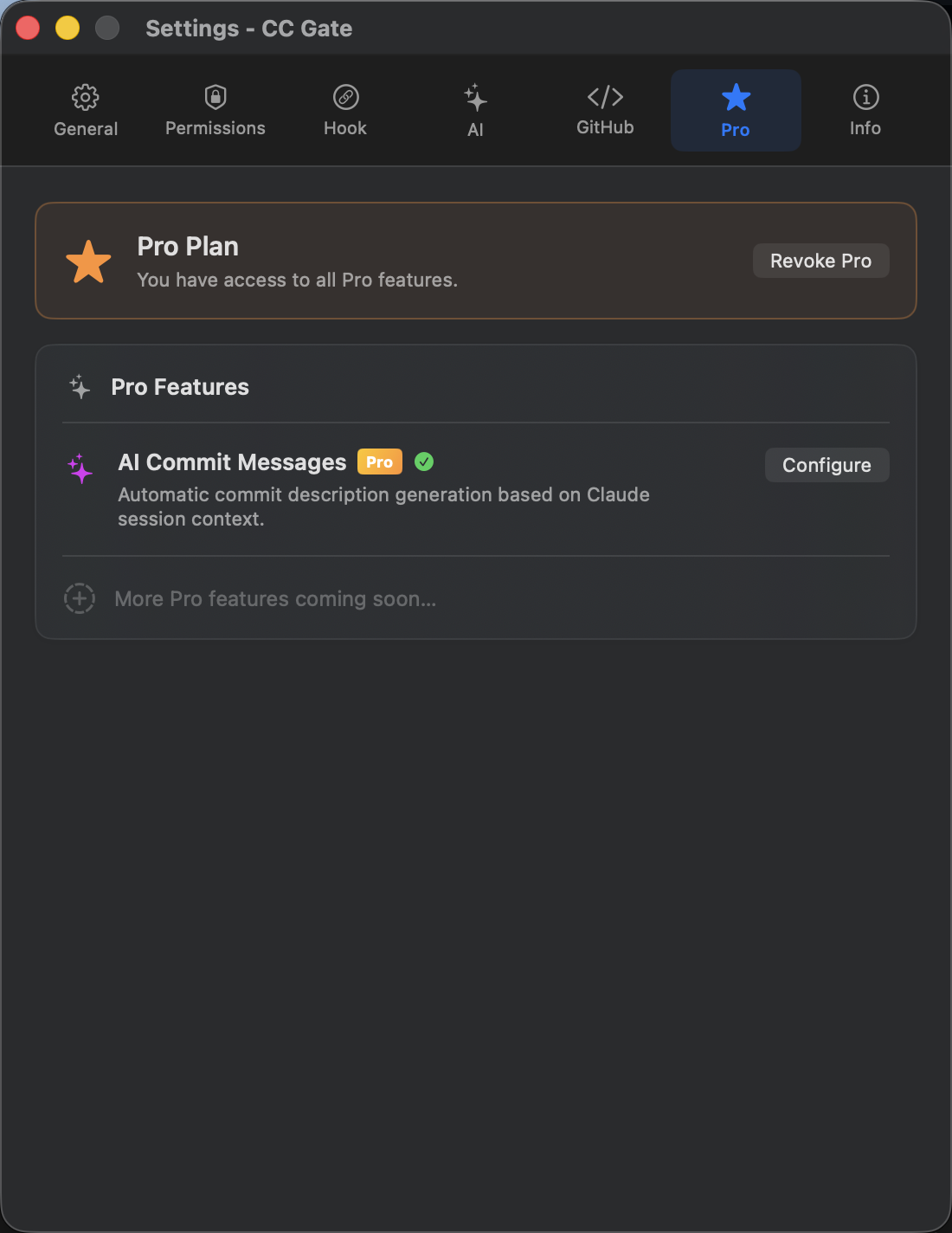
Plan status
Shows whether you're on the Free or Pro plan. Pro subscribers also see their renewal date here.
AI Commit Messages
The main Pro feature right now. On a Pro plan, a Configure button takes you to the AI tab to enter your API key. On the Free plan, you'll see an option to upgrade.
More features coming
More Pro features are on the way. If you're already on Pro, you'll get them automatically when they're released.
About (Info tab)
About
Version info and a hidden bonus.
Version number
The current CC Gate version. Always include this when reporting a bug. Click the version number seven times quickly to unlock Developer Mode, which gives you access to the Background Test Runner and other experimental features.
Build number
A more detailed version identifier. Include this in bug reports too.
Links
Shortcuts to the GitHub page, release notes, and the issue tracker for bug reports.