Auto-Accept
Every time Claude Code wants to do something, it asks for permission first. Auto-Accept lets you say yes in advance for the kinds of actions you're comfortable with — so Claude can keep working without interrupting you every few seconds.
Opening the Auto-Accept panel
Click the bell icon in the top-right corner of the CC Gate popup. The Auto-Accept panel opens, showing all six permission levels as toggles. You can switch any of them on or off at any time, even while Claude is working.
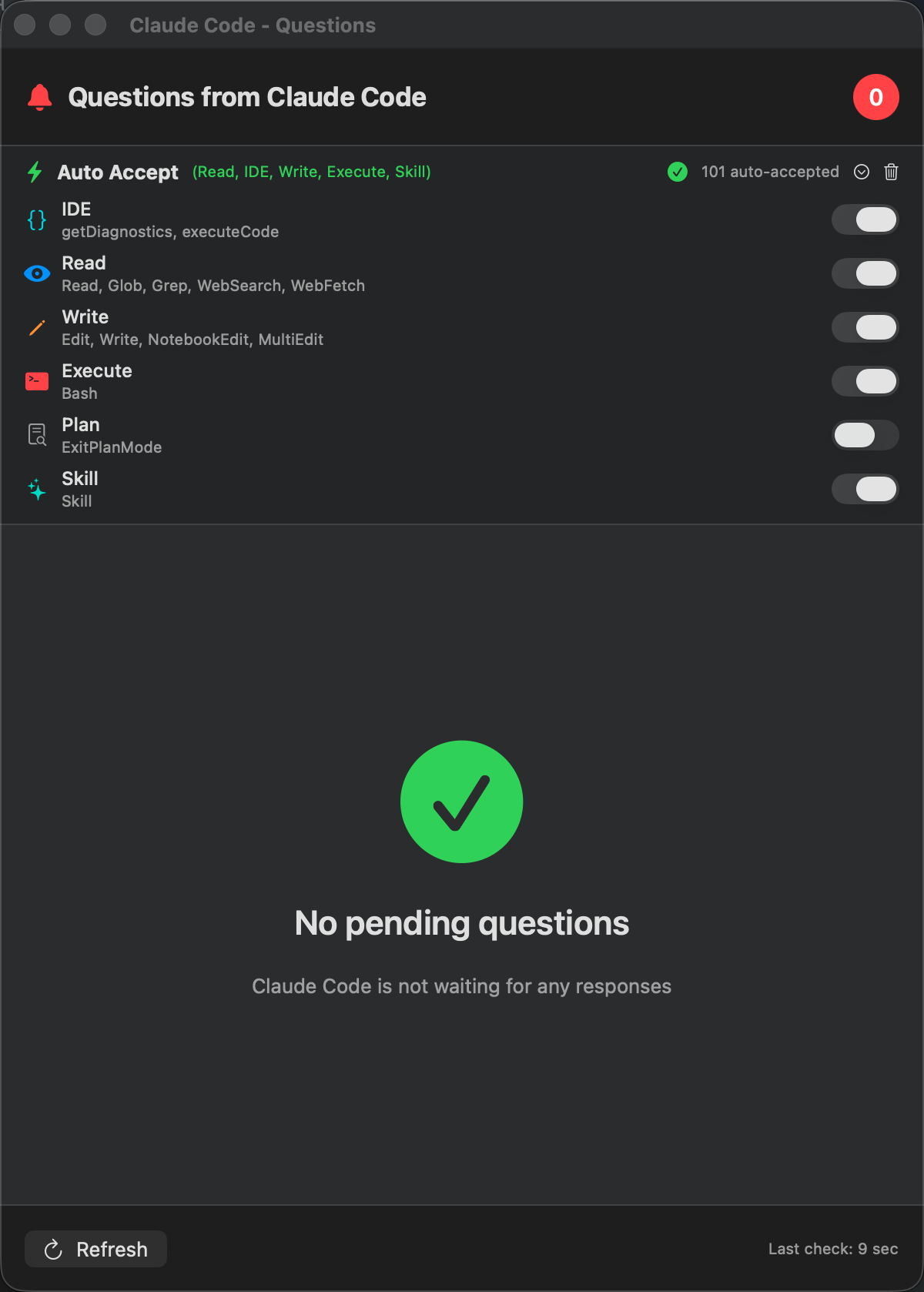
The 6 permission levels
Each level covers a different type of action Claude Code can take. They're listed from the most specific (editor actions) to the most general (skills). Turn on the ones you're comfortable with.
IDE
Claude can talk to your code editor — for example, asking it for the list of errors and warnings in your current file, or running a snippet of code directly inside the editor. These are editor-specific actions that don't touch your filesystem or run system commands.
Risk level: Very low. Claude is just reading diagnostics or triggering an in-editor run — nothing outside your editor is affected.
Good for: Anyone using an IDE integration with Claude Code. Safe to leave on all the time.
Read
Claude can open and read files, search through your project, browse the web for information, and list folder contents. It cannot change anything — only look. This is as risky as letting someone glance at your screen.
Risk level: Zero. Nothing can be created, edited, or deleted.
Good for: Everyone. There's no reason not to have this on.
Write
Claude can create new files and edit existing ones. If you're using git (which most people working with Claude are), every change Claude makes can be reviewed and undone. It's a bit like giving someone edit access to a shared document — you can always see what changed and roll it back.
Risk level: Low if you use git. Changes are visible and reversible.
Good for: Anyone who wants Claude to write and edit code without stopping for every single file.
Execute
Claude can run actual commands in the terminal — install packages, run build scripts, delete files, anything you could type yourself. This is the most powerful level, and it should be used thoughtfully. Only turn this on when you trust what Claude is doing and you're familiar with the project.
Risk level: High potential. Terminal commands can have broad effects.
Good for: Trusted personal projects where you're keeping an eye on what Claude does. Not recommended for unfamiliar codebases.
Plan
Sometimes Claude lays out a plan before starting work and waits for you to say "go ahead." Turning this on lets CC Gate say "go ahead" automatically, so Claude moves straight from planning into doing without the extra pause.
Risk level: Very low. This is just a workflow checkpoint, not an action with side effects.
Good for: Anyone who trusts Claude's planning and finds the extra confirmation unnecessary.
Skill
Claude has a set of built-in skills — pre-defined tasks it knows how to do. When Claude wants to use one of these skills, it asks for permission. Turning this on lets CC Gate approve skill usage automatically.
Risk level: Depends on the skill. Skills are pre-defined, so Claude can't invent new ones on the fly.
Good for: Users who regularly use Claude's skills and find the approval prompts repetitive.
Each level is independent
The 6 levels work completely independently — turning one on or off has no effect on the others. You can have any combination active at the same time. For example, you can enable Read and Execute but leave Write off. Or enable only Plan. It's entirely up to you.
Toggle each one individually. Changes take effect immediately — no restart needed, even mid-session.
What CC Gate never auto-accepts
When Claude asks you a question
There's an important difference between Claude asking for permission ("can I edit this file?") and Claude asking you a question ("what should the button label say?" or "which option do you prefer?").
Auto-Accept only handles permission requests. When Claude asks you an actual question to clarify what you want, CC Gate never intercepts it — it goes straight to your terminal. You type your answer there, just as if CC Gate weren't installed. This always requires your manual response.
Tools CC Gate doesn't recognise
If Claude tries to use a tool that CC Gate doesn't know about, it always asks you manually — no matter which levels are on. Unknown tools are never auto-approved. You'll see the request appear in the Questions window and you decide yourself.
Good defaults to start with
git diff before committing.