Projects & Status
When you open CC Gate, you see a list of all your projects. Here's what everything means.
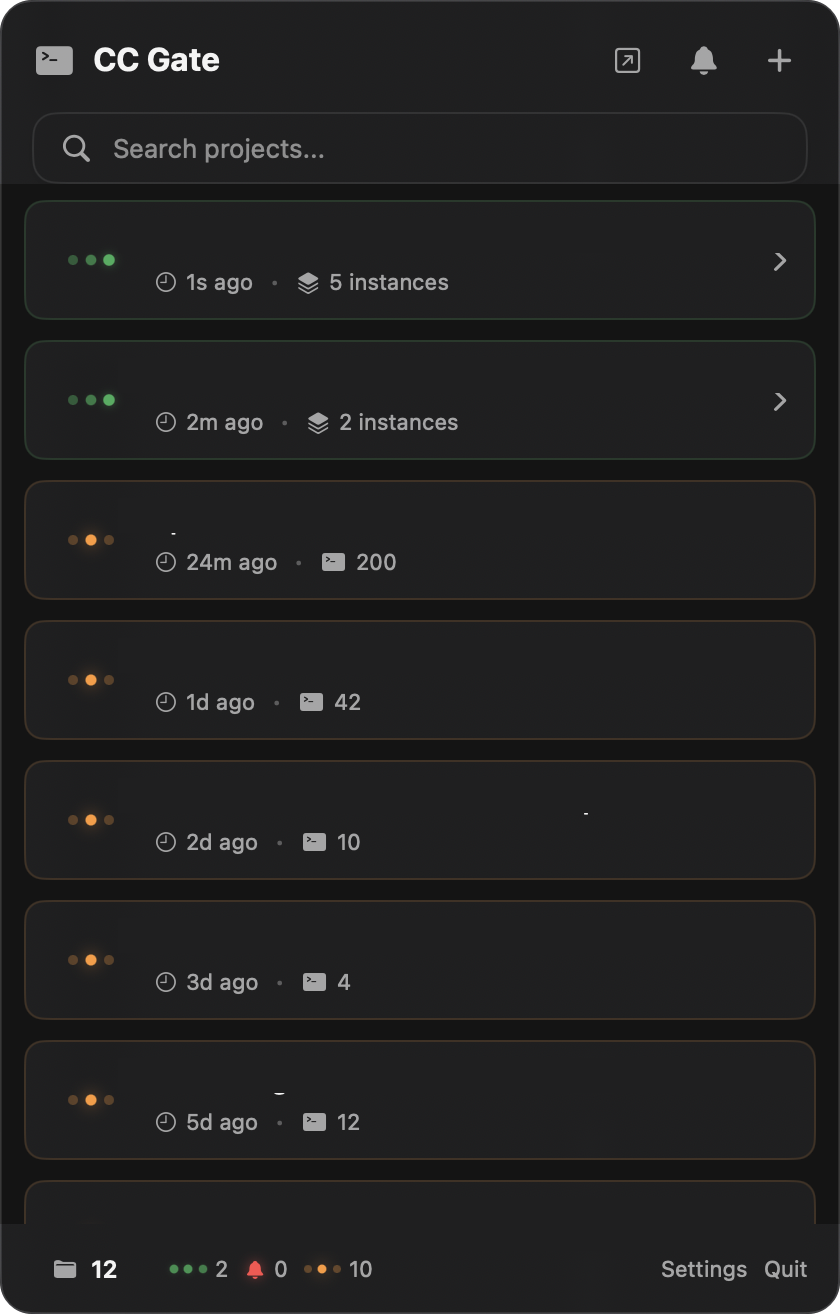
How projects appear automatically
CC Gate keeps track of every folder where you've ever run Claude Code. As soon as you use Claude in a new folder, that folder shows up in CC Gate automatically — no setup needed, no adding projects manually.
The list refreshes every few seconds in the background, so new projects appear quickly and status dots stay current. You can adjust how often CC Gate checks for updates in Settings if you want to save battery.
Status dots — what the colors mean
Each project has a small colored dot on the left. It tells you at a glance what Claude is doing right now in that project.
Green (pulsing) — Claude is working
The dot pulses gently to show activity. You'll see this while Claude is thinking, writing code, running searches, or doing anything at all. It might stay green for a while during long tasks like large refactors or test runs — that's normal.
Orange — Idle
Either a Claude Code session is open in this project but not doing anything right now, or there is no active session at all. This is the resting state between tasks — you'll see it after Claude finishes a task and is waiting for your next message, or when Claude Code is not running.
Red bell — waiting for your approval
A red notification bell appears when Claude is blocked waiting for your response — for example a permission request ("can I run this command?"), a plan that needs your sign-off, or a direct question. Click the project to see the pending request and respond. If you have Auto-Accept enabled for that action type, CC Gate handles it automatically.
What each project shows
Adding a new project
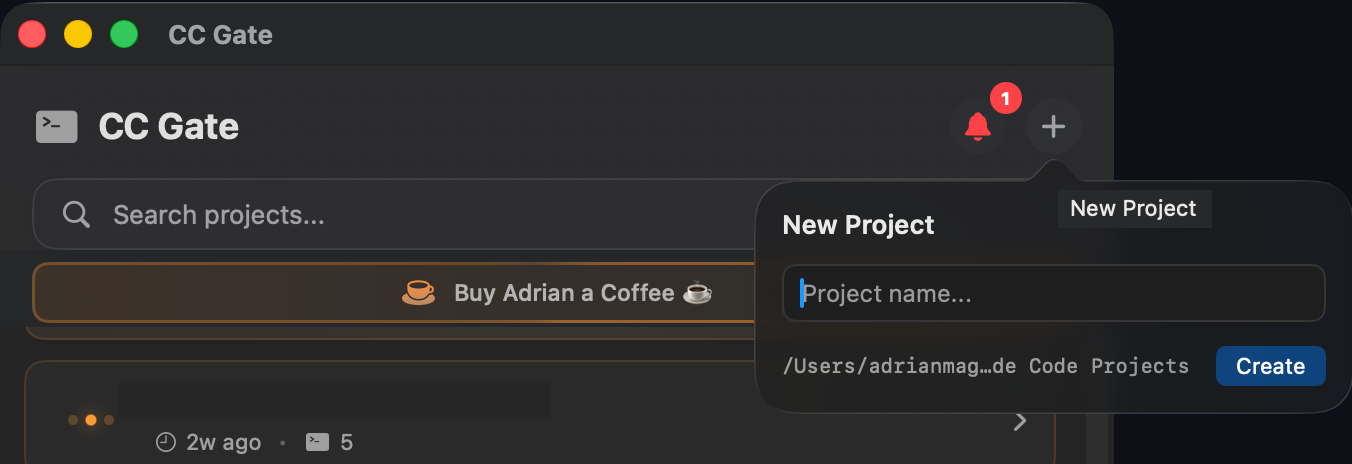
Click the + button in the top bar of the CC Gate popup. Type a name for the new project — CC Gate will create the folder inside your configured projects directory and open Claude Code there. The project appears in the list right away.
Removing a project
Projects fade out on their own when all their session history is gone. You don't usually need to remove them manually.
If you want to remove a project yourself, right-click on it in the list and choose Remove.
What gets deleted — and what doesn't
CC Gate applies a safety rule before deleting anything:
- Project inside your configured directory — the project folder and its files are deleted. This only applies to projects that CC Gate itself created inside the folder you defined in Settings.
- Project outside your configured directory — CC Gate will not delete any files. Instead it informs you about the situation and removes only the project entry from the list.
Searching projects
If you have a lot of projects, use the search bar at the top of the CC Gate popup to filter by name. Just start typing and the list narrows down instantly.
Refresh rate
CC Gate checks for changes every 15 seconds by default. That's a good balance between staying up-to-date and not draining your battery. You can change it in Settings under the General tab.
| Interval | Battery impact | Best for |
|---|---|---|
| 5 seconds | Higher | When you're actively watching Claude and want instant updates |
| 15 seconds (default) | Balanced | Most people, most of the time |
| 30 seconds | Lower | Laptop on battery, or if you don't need to watch status closely |
| 60 seconds | Minimal | Running CC Gate overnight or leaving it in the background all day |